
How to refresh back office reports
First published on December 5, 2025 , updated on July 29, 2026Introduction
To ensure your back office reports reflect the latest data, you need to refresh the reports using the VOGSY Add-on in your spreadsheet application. The process differs slightly depending on whether you are using Google Sheets or Microsoft Excel.
Google Workspace (Google Sheets)
If you are using Google Sheets, the VOGSY add-on appears in the right-hand panel of your spreadsheet interface, alongside any other Google Workspace add-ons.
Refreshing your report
Open a VOGSY back office report in the reports section of the back office.
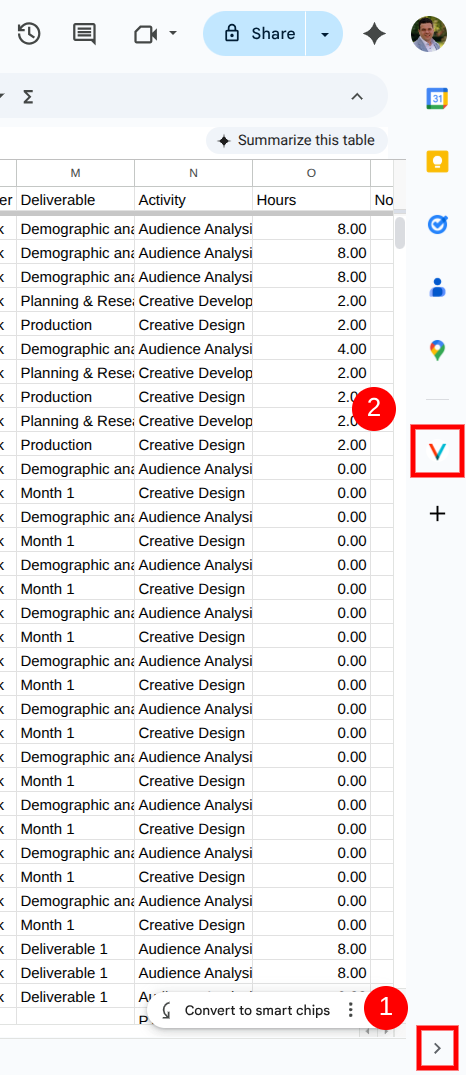
Look for the VOGSY add-on icon or tab on the right side of your screen and click on it to open the panel. (See pointers 1 and 2 on the screenshot below)
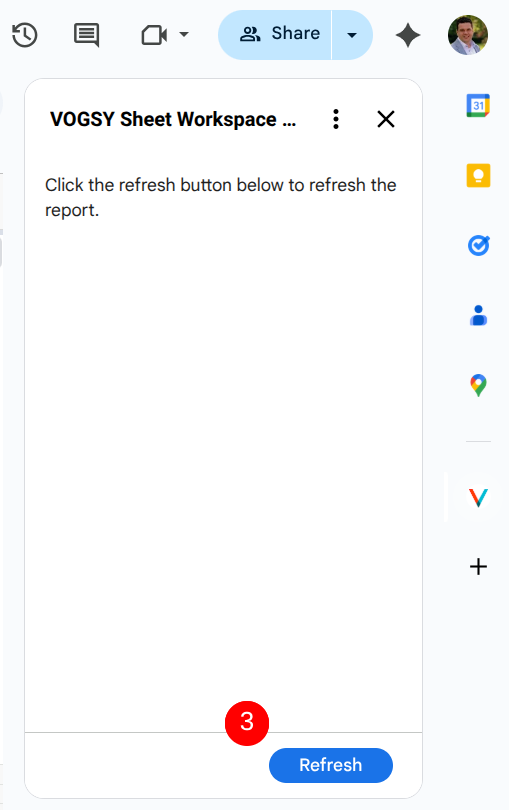
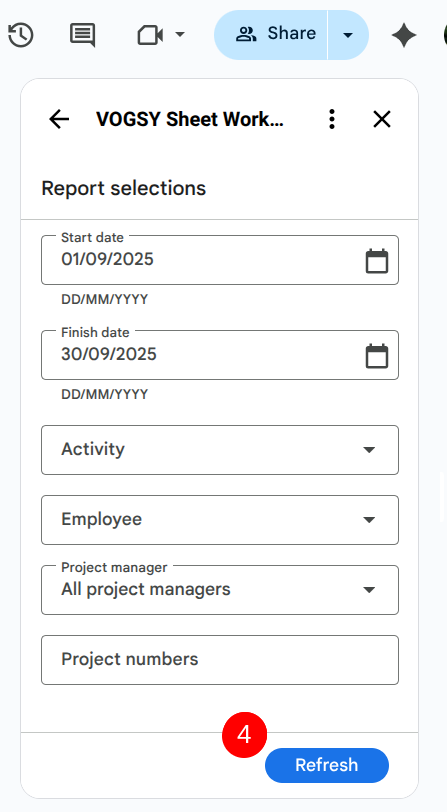
Within the VOGSY add-on panel, you will find the option to refresh the report. Click this button to pull the latest data (see pointers 3 and 4 in screenshots below)
Activating the add-on
In Google Sheets, look for the add button ($\mathbf{+}$) on the right panel (or go to Extensions > Add-ons > Get add-ons).
This opens the Google Workspace Marketplace.
Search for VOGSY in the marketplace.
Select the VOGSY add-on and click to install it.
Microsoft Office (Microsoft Excel)
If you are using Microsoft Excel (either desktop or web), the VOGSY add-on (referred to as an "addin" in Microsoft terminology) typically appears in the header/ribbon of the spreadsheet.
Refreshing your report
Open your VOGSY back office report in Microsoft Excel.
Locate the VOGSY tab or button in the header/ribbon menu. Click on it.

A VOGSY pane or menu should open where you will find the option to refresh the report. Click this button to update your data.
Activating the add-on
In Excel, navigate to the menu option (often under the Insert or Home tab) that allows you to Manage Add-ins (sometimes labeled Get Add-ins).
This will open the Microsoft Office Add-ins store.
Search for VOGSY.
Select the VOGSY add-in and click Add to install it to your Excel application.
Refreshing your report
Open your VOGSY back office report.
Open the VOGSY add-on, click the refresh button.
Complete the selection screen that appears to define your report parameters.
Check the 'Details' tab to monitor the status of the refresh.